Figma is the dominant digital design tool in 2026: over 90% of product teams use it as their standard. If you want to work in UX/UI Design — in the US, UK, or anywhere — learning Figma to a working level is a non-negotiable prerequisite. The good news is that it's a friendly tool, free for individual use, with a reasonable learning curve: in 3–4 weeks of regular practice you can reach a hireable junior level.
This tutorial walks you through Figma's fundamentals: what it is, why it became dominant, the 10 key concepts to master, a recommended learning path, and the free resources you can start using today.
What you'll learn:
- What Figma is and why it dominates
- The 10 key concepts to master
- A structured 4-week learning path
- Free resources in English
- The 2026 updates: Dev Mode, AI, Figma Sites
What Figma is
Figma is a collaborative, cloud-based digital design tool. Its distinctive traits:
- Browser-based: it runs directly in the browser with no installation required. A desktop app exists but isn't mandatory.
- Real-time collaboration: multiple people can work on the same file simultaneously (think Google Docs for design).
- Free for individual use: the Starter plan covers the needs of a freelancer or a student.
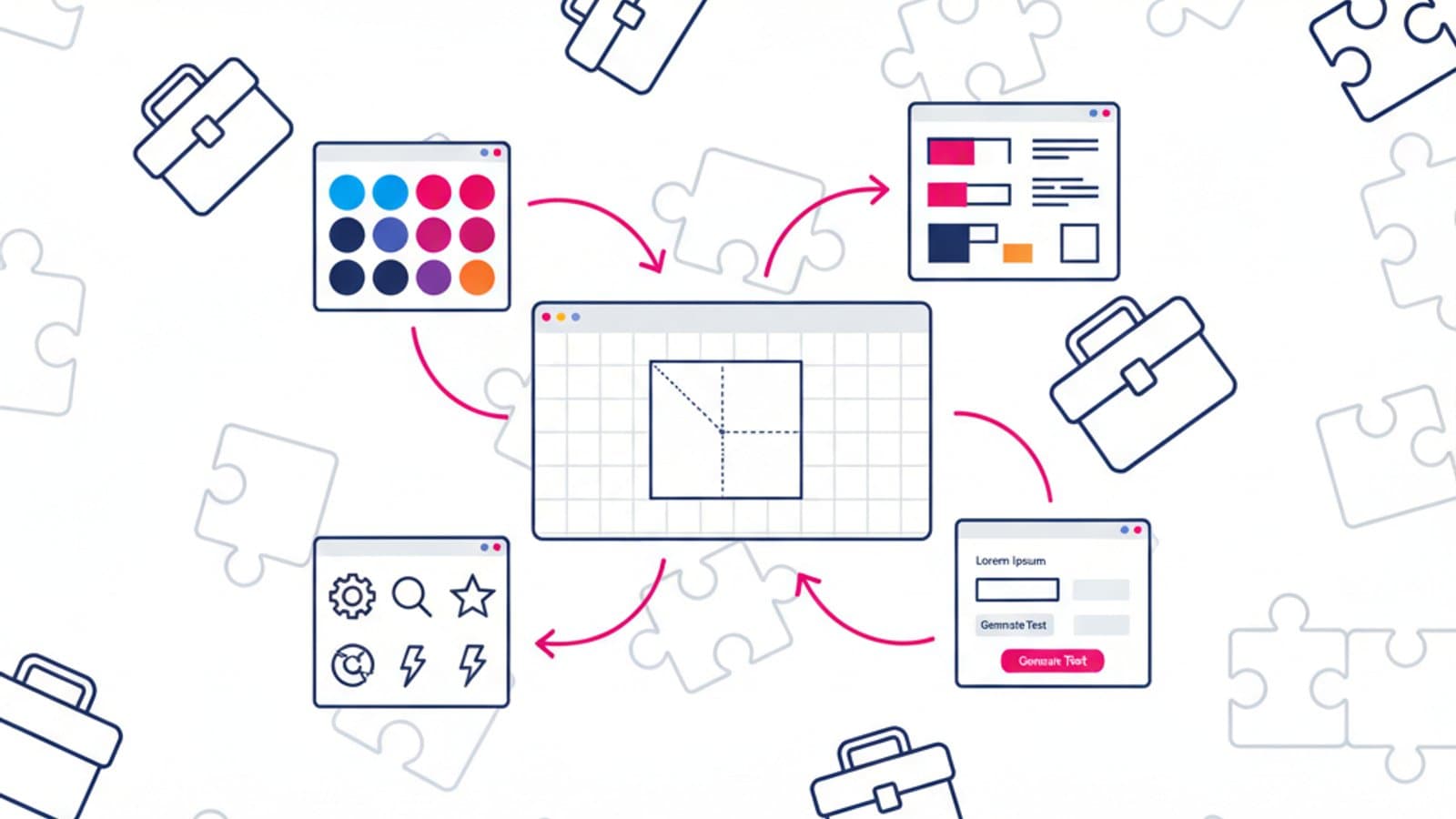
- End-to-end integrated: wireframes, prototypes, design systems, developer handoff — all in one platform.
- Cross-platform: Mac, Windows, Linux (browser), iPad.
Figma was acquired by Adobe in 2022, but the deal was blocked by antitrust regulators in 2023 and Figma stayed independent — with a product acceleration that delivered many updates in 2024–2026.
Why Figma dominates
Three structural reasons Figma eclipsed Sketch and Adobe XD:
- Native collaboration: while Sketch was local (one designer at a time), Figma made simultaneous work possible. In the era of distributed remote work that was a decisive advantage.
- Affordable pricing: free for individual use, very competitive pricing for professional teams compared to alternatives.
- Plugin and community ecosystem: thousands of free plugins, shared libraries, and publicly available templates.
By 2026 the direct competitors (Adobe XD was discontinued in 2024, Sketch is confined to a Mac-only niche) are no longer a realistic alternative for professional teams.
The 10 key concepts to master
Here's the ordered list of the concepts you need to understand to use Figma at a working level. It's not meant to be exhaustive — each point deserves a deep dive — but it covers 90% of what you'll use every day.
1. Frames
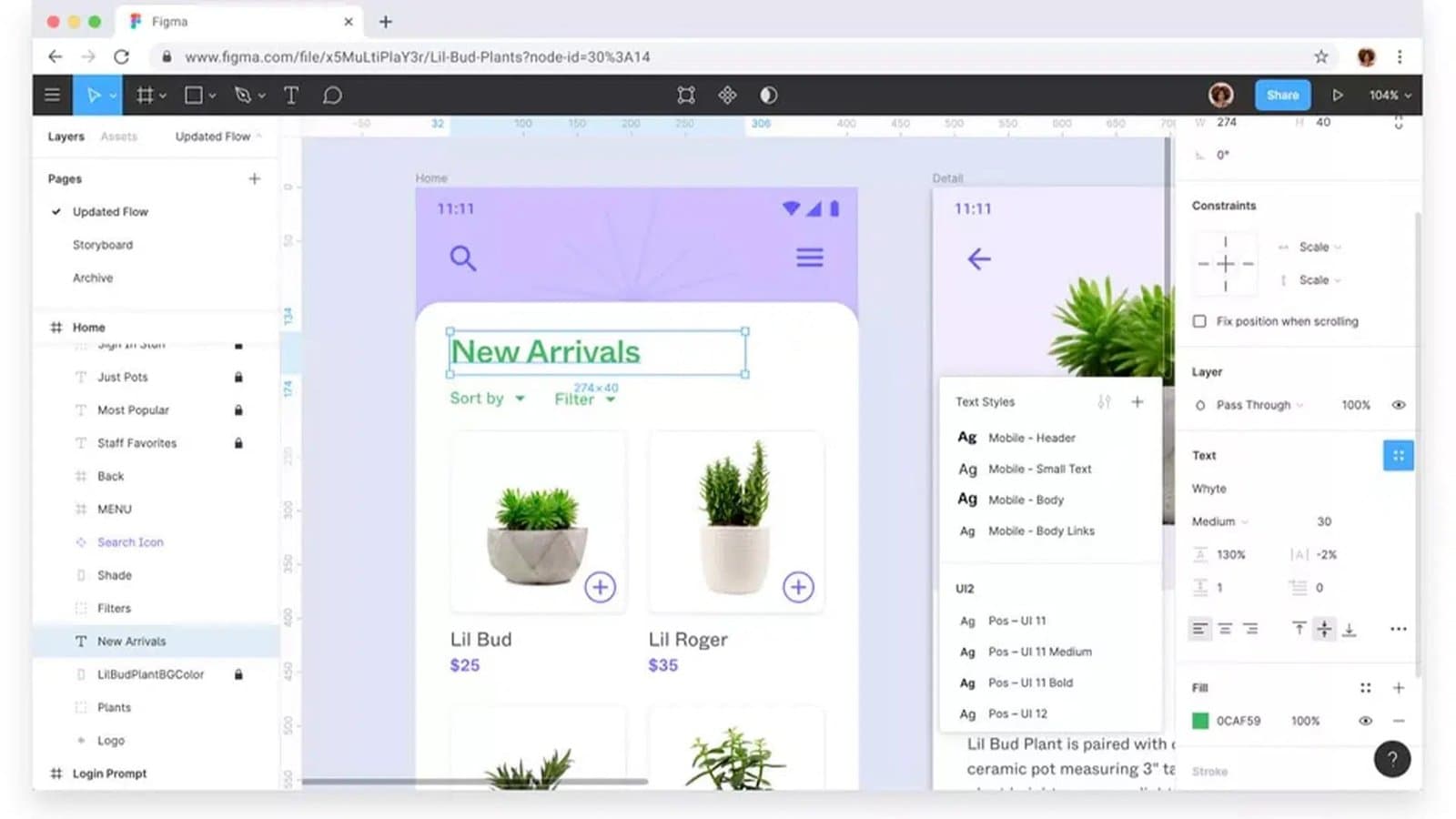
Frames are the primary design containers in Figma. A frame represents a screen (mobile, desktop, tablet) and holds all the elements inside it. They replace the "artboards" in other tools. You can nest frames inside frames.
2. Shapes and drawing tools
Rectangle, ellipse, line, polygon, pen tool. The basics of vector drawing in Figma. Learn the shortcuts (R for rectangle, O for ellipse, L for line) — you'll save hours of work.
3. Text and typography
The text tool with all the controls: font, weight, size, line-height, letter-spacing, alignment. Figma natively supports Google Fonts and any fonts installed on your system. Text styles let you define reusable styles for headings, body, and captions.
4. Color styles
Color styles are reusable color definitions. You create an initial palette (primary, secondary, background, text, error, success) and apply it consistently throughout the project. When you change a style, every instance updates.
5. Auto Layout
The single most important concept in modern Figma. Auto Layout is a responsive layout system that makes frames behave like CSS flexbox containers: elements arrange themselves automatically, resize, and space themselves with precise rules.
Without Auto Layout you make "pixel-perfect" but brittle design. With Auto Layout you make responsive, reusable, maintainable design. Learn Auto Layout deeply before moving on to more advanced concepts.
6. Components
Components are reusable elements. You make a button once, turn it into a component, and then use it in dozens of places. Change the master component and every instance updates automatically.
Components are the heart of a design system: without them every change is a nightmare.
7. Variants
Variants are variations of the same component. A button might have 3 sizes (small/medium/large) and 3 states (default/hover/disabled) — instead of making 9 separate components, you create one component with variants and pick the properties you need.
Mastering variants lets you build compact and intuitive design systems.
8. Interactive components
Interactive components let you define clickable states inside components (hover, press, toggle). They're fundamental for realistic prototypes: instead of wiring every interaction manually in the prototype, you define the interactions once inside the component.
9. Prototyping
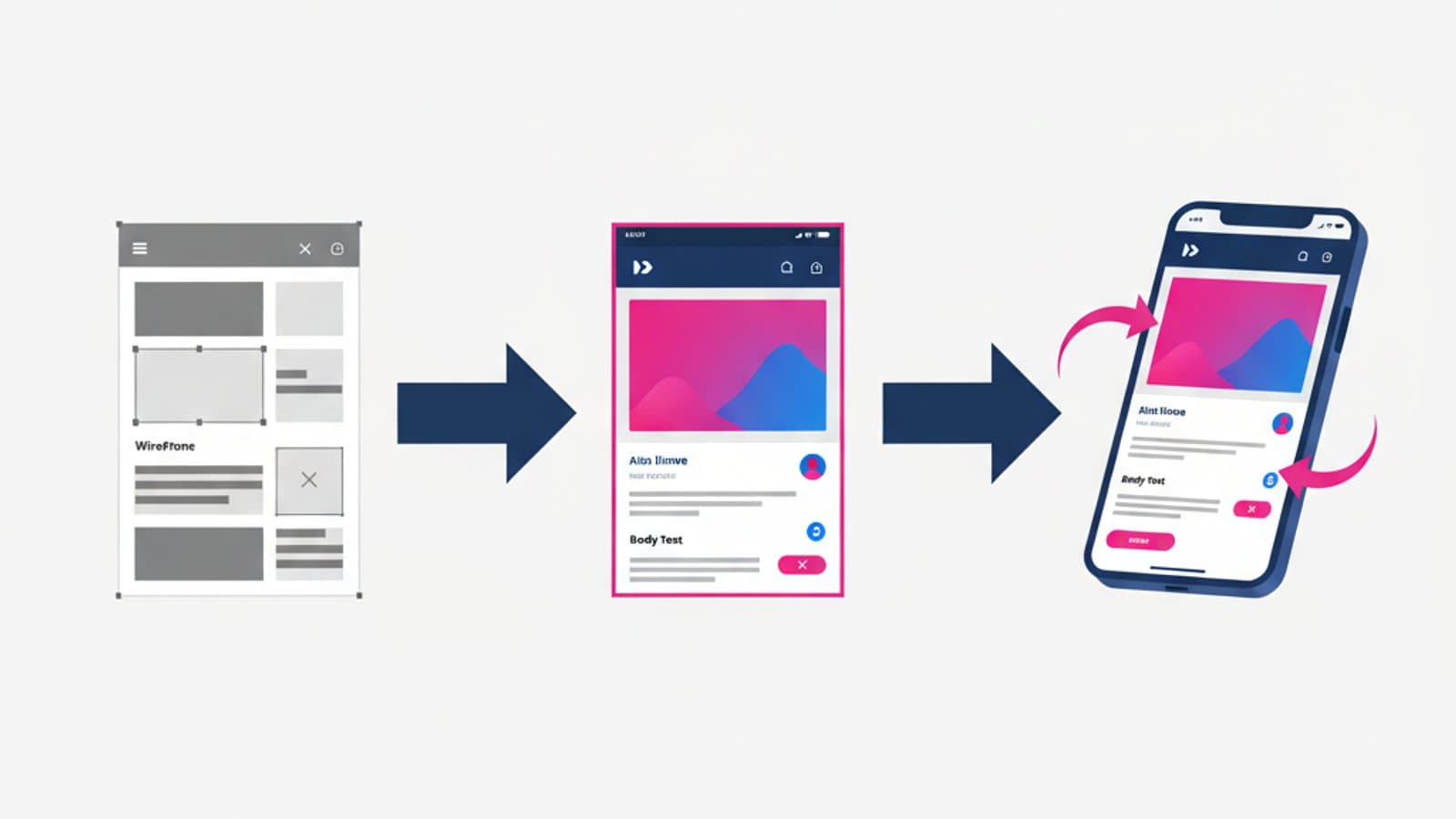
Figma lets you create interactive prototypes by connecting frames with transitions. You can simulate a clickable app, define animations between screens, and manage states. Prototypes are shareable via link and can be tested with real users through tools like Maze.
10. Dev Mode and handoff
Figma's Dev Mode (introduced in 2023) is a dedicated space for developers to inspect the design. It shows precise measurements, color codes, CSS typography specs, and exportable assets. It has become the standard for developer handoff, eliminating the need for external tools like Zeplin.
A 4-week learning path
A realistic plan to start from zero and reach a working level in a month of consistent study (5–8 hours per week).
Week 1: the fundamentals
- Install Figma (or open it in the browser)
- Learn frames, shapes, text, selection, alignment
- Follow the official tutorials at Figma Learn
- Week goal: recreate a static screen of an app you know (for example, an Instagram page)
Week 2: Auto Layout and responsive
- Learn Auto Layout deeply: padding, gap, direction, align, distribute
- Rebuild the same screen from week 1, but now with Auto Layout
- Test responsiveness by resizing the frames
- Week goal: three different screens, all in Auto Layout, responsive
Week 3: Components and Variants
- Build your first components (button, input, card)
- Add variants for sizes and states
- Organize the components into a library inside the file
- Week goal: a mini-library with 8–10 reusable components
Week 4: Prototypes and Dev Mode
- Build an interactive prototype spanning 5–6 screens
- Add transitions and smart animate
- Explore Dev Mode and asset export
- Week goal: a navigable prototype shareable by link
By the end of week four you're at an operational junior level: you can start applying for your first experiences (internships, simple freelance work, contributions to open projects).
Free resources to learn Figma
- Figma Learn — the official channel, free, excellent for the fundamentals
- Figma YouTube channel — talks, tutorials, and case studies from Config (Figma's annual conference)
- Flux Academy — high-quality tutorial YouTube channel
- AJ&Smart — workshops and practical tutorials
- Figma Community — thousands of files and templates shared for free by designers
- DesignCourse — deep dives on UI fundamentals in Figma
What's new in Figma in 2024–2026
Advanced Dev Mode. Since 2023 Dev Mode has grown more powerful with code snippets, variable tokens, and annotations. In 2026 it's the standard for developer handoff.
Figma AI. Introduced in 2024, Figma AI offers features like generating first-draft designs from text prompts, content suggestions in placeholders, and automatic layout restructuring. It's still evolving — use it as an assistant, not a substitute for the designer.
Figma Slides. Figma introduced a "Slides" mode to build presentations directly in the design file. Handy for presenting your work without jumping into PowerPoint or Keynote.
Figma Sites (beta). In 2025 Figma started testing Figma Sites, a tool to turn Figma designs into real websites with no code. Still evolving, but it could become a direct competitor to Webflow and Framer by 2027.
Common beginner mistakes
Five frequent mistakes in the first days with Figma:
- Ignoring Auto Layout: working only with static frames makes the design brittle. Learn Auto Layout from week two.
- Not using components: copy-pasting elements instead of creating components leads to unmanageable files.
- Hardcoded styles: defining colors every time instead of creating reusable color styles.
- Messy files: not organizing pages and layers produces files that become unreadable beyond 50 elements.
- Ignoring shortcuts: Figma has dozens of shortcuts. Learning them in the first few weeks doubles your speed.
Frequently asked questions
Is Figma really free?
The Starter plan is free for individual use and covers the needs of a student or a freelancer working solo. The paid plans (Professional, Organization, Enterprise) are for teams of designers collaborating on shared projects and add management and permissions features.
Can I use Figma on iPad?
Yes — Figma has had an official iPad app since 2024. It works well for review and touch-ups; for serious design work the browser or desktop app are still preferable thanks to the larger workspace.
Does Figma replace Photoshop and Illustrator?
For digital interface design, yes. For complex bitmap photo editing (Photoshop) or advanced vector illustration (Illustrator), no. The best designers use Figma as the center of gravity and Photoshop/Illustrator as specialist tools when needed.
How long does it take to get good at Figma?
Operational level (working on real projects under guidance): 3–4 weeks of regular practice. Autonomous level (handling a project solo): 2–3 months. Expert level (able to build complex design systems): 6–12 months of daily use.
Should I learn Figma first or design principles?
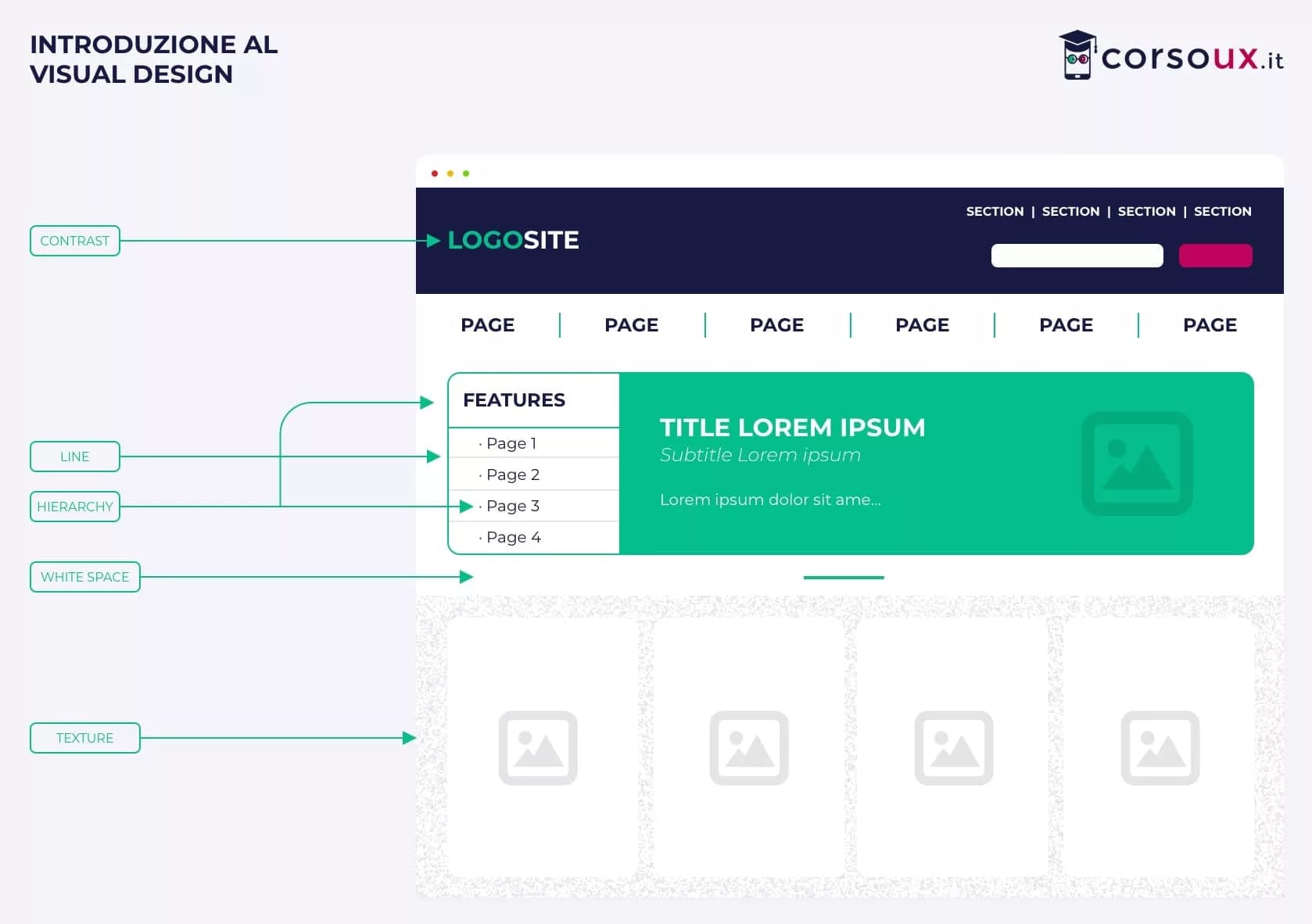
In parallel, with a slight priority on principles. Figma is a tool: without design principles (typography, color, hierarchy) using it well is impossible. Read our article on the basics of UI Design and study Gestalt principles while you learn Figma.
Does Figma work offline?
Partially. The desktop app lets you work offline on files you already have open and syncs when you come back online. The browser requires a connection. It's not yet a fully offline experience like some other tools.
Next steps
Figma is the tool, but design is the craft. To build the full set of skills:
- Study the principles of UI Design that guide every decision in Figma
- Dive into typography for interfaces
- Learn how to build effective wireframes in Figma
CorsoUX's complete UX Design course includes a practical path in Figma, guided by a mentor who reviews your files every week — dramatically accelerating the learning curve compared to pure self-study.